Microsoft Authenticator
- 1.13K
- 4.3
- Installs
- 630.00M
- Version
- Varies with device

Screenshots







Microsoft Authenticator: A Secure and Convenient Two-Factor Authentication App
In an era where cybersecurity threats are rampant, protecting your online accounts is more critical than ever. Microsoft Authenticator is a free mobile app designed to enhance security by providing two-factor authentication (2FA) for your accounts. Whether you're securing your Microsoft account, email, or third-party services, this app offers a seamless and reliable way to keep your data safe. Let’s dive into its features, usability, and why it stands out among other authentication apps.
Key Features of Microsoft Authenticator
1. Two-Factor Authentication (2FA) & Multi-Factor Authentication (MFA): Microsoft Authenticator generates time-based one-time passwords (TOTP) for added security. Instead of relying solely on passwords, you’ll need a second verification step—either a push notification, a code, or biometric authentication.
2. Passwordless Login: One of the app’s standout features is the ability to log in without a password. By using your phone’s biometric authentication (fingerprint or face recognition) or a PIN, you can securely access Microsoft accounts without typing a password.
3. Cloud Backup & Recovery: Losing your phone doesn’t mean losing access to your accounts. Microsoft Authenticator allows you to back up your credentials to the cloud (via a Microsoft account) and restore them on a new device.
4. Support for Third-Party Accounts: Beyond Microsoft services, the app works with Google, Facebook, Dropbox, Amazon, and many other platforms that support 2FA via TOTP.
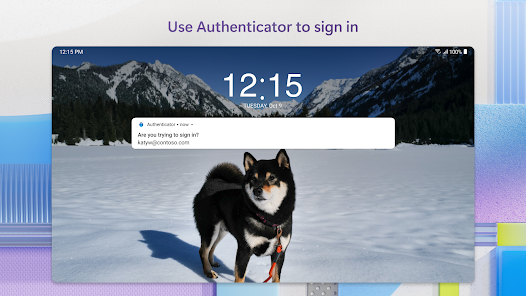
5. Secure Notifications: Instead of manually entering codes, you can approve sign-ins with a single tap via push notifications, making the process faster and more convenient.
User Experience & Interface
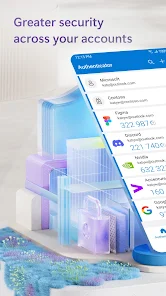
Microsoft Authenticator boasts a clean, intuitive interface that’s easy to navigate. Adding an account is straightforward—simply scan a QR code or manually enter a setup key. Once configured, your accounts appear in a list with rotating verification codes. The app also color-codes accounts for better organization.
The passwordless login feature is particularly user-friendly. When signing in to a Microsoft account, you’ll receive a notification on your phone. A quick approval (via fingerprint or facial recognition) grants access without typing a password—ideal for reducing phishing risks.
Security & Privacy
Microsoft takes security seriously, and the Authenticator app is no exception. All data is encrypted, and the app requires device authentication before displaying codes. Cloud backups are also encrypted, ensuring that even if someone accesses your Microsoft account, they can’t retrieve your authentication details without additional verification.
Unlike SMS-based 2FA, which is vulnerable to SIM-swapping attacks, Microsoft Authenticator generates codes locally on your device, making it a more secure alternative.
Pros & Cons
Pros: - Free to use with no hidden costs. - Supports passwordless logins for Microsoft accounts. - Cloud backup prevents lockout if you lose your phone. - Works with a wide range of third-party services. - Simple, user-friendly interface.
Cons: - Some non-Microsoft services may not support push notifications, requiring manual code entry. - Reliance on a Microsoft account for backup might deter users who prefer alternative cloud services.
Comparison with Other Authenticator Apps
Compared to competitors like Google Authenticator and Authy, Microsoft Authenticator holds its own with unique advantages. Google Authenticator lacks backup options, while Authy, though feature-rich, requires a phone number for setup. Microsoft’s solution strikes a balance between security and convenience, especially for users entrenched in the Microsoft ecosystem.
Final Verdict
Microsoft Authenticator is a robust, secure, and user-friendly app for anyone looking to enhance their online security. Its passwordless login feature, cloud backup, and broad third-party support make it a top choice for 2FA. While it excels for Microsoft account users, it’s versatile enough for anyone seeking a reliable authentication tool. If you’re serious about safeguarding your digital life, this app is a must-have.
Download Microsoft Authenticator today and take the first step toward a more secure online experience!
Latest Update: Passkey Support and Enterprise Enhancements
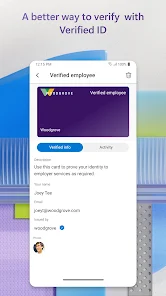
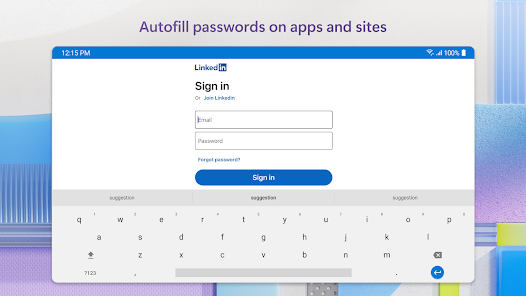
Microsoft Authenticator added broader passkey and passwordless capabilities to simplify sign‑ins across apps and websites, alongside improvements to account backup and faster push notifications. The update also focused on enterprise needs with stronger Conditional Access integration, better device‑based authentication flows, and improved diagnostics and admin controls to streamline deployment and recovery.


